 Follow Us on Google News


 Follow Us on Google Discover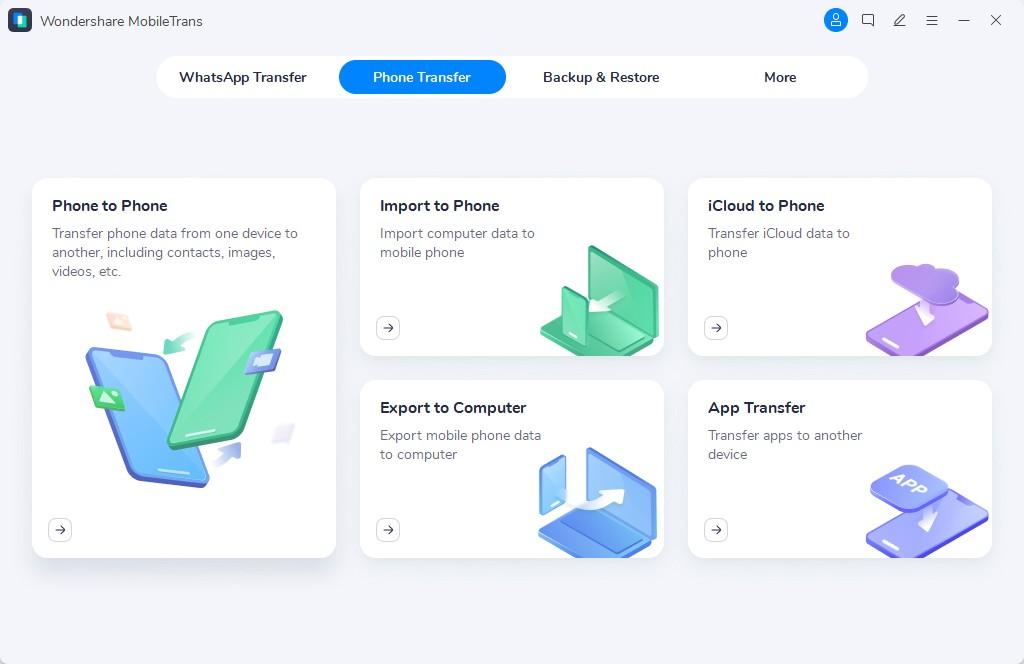

With each passing day, the influence of switching phones according to the upgrade is increasing among the people. There was a time when Apple was the only one in the good smartphone game, but Android has changed its game with time. Now, various Android devices are more compatible than iPhones.
[ad]
The trend of switching from iPhone to Android smartphones is increasing daily. If you are one of those people who are looking to learn how to transfer data from iPhone to Android, then this article is for you. Read it and explore some options to conveniently transfer your information across these two operating systems.
Part 1: The Limitations of the Samsung Smart Switch
Samsung Smart Switch may be a good application for how to move info from iPhone to Android, by providing convenient data transfer. Although Smart Switch has a seamless data transfer process, it does have a few limitations that can interrupt your info transfer process. You can learn about the limitations of the Smart Switch by reading the following points:
- Restrictions of Compatibility: Smart Switch is a great app for how to transfer data from iPhone to Android, but it is only compatible with Samsung Galaxy smartphones. It does not support any other Android device, making it a non-compatible solution for multiple platforms.
- Interruptions while Transferring the Data: This app does not work on the latest data transfer techniques and algorithms, which is why many users have complained about interruptions during data transfer. If the transfer is suspended in the middle because of any reason, sometimes you might lose all your data.
- Slow Transfer Speed: The transfer process of data is faster with a cable connection than with wireless transfer. If the devices are not close enough to each other, the data-shifting process might take a long time to complete.
Solution 1. Transfer data from iPhone to Android by Wondershare MobileTrans
Designed with efficiency, Wondershare MobileTrans lets users transfer their data across various devices. Whether upgrading your device or switching from iPhone to Android or vice versa, this phone transfer tool ensures a hassle-free data transmission experience. With intuitive transfer features like data backup, cross-platform compatibility, encrypted data security, and more, MobileTrans desktop streamlines the data transfer process.
To resolve all the questions related to how to move info from iPhone to Android, you should try the innovative phone-to-phone feature of MobileTrans. From messages to videos, this versatile tool facilitates the rapid and secure transfer of all your precious content. Furthermore, this innovative tool even allows you to restore your iCloud data from your old iOS device to your new Android smartphone of any brand.
Guide to Transfer Info From iPhone to Android with MobileTrans Desktop
With the increase in demand for cross-platform data transfer solutions, the desktop version of MobileTrans stands out as a versatile solution. With these simple instructions, you can move your data from iPhone to Android:
Step 1: Access the MobileTrans Software

Download the Wondershare MobileTrans tool from its official website, and on the home screen, click the “Phone Transfer” tab and select the “Phone-to-Phone” function to start the data transmission. Establish the connection between your smartphone and the computer using their respective USB data cables and specify the iPhone as the “Source” and the Android device as the “Destination.”
Step 2: Select the Data to Transfer from iPhone to Android
Let the data load on the tool, then select the desired folders and files you want to move to your Android device. Select the content by ticking the checkboxes, or you can choose all your content for transfer. Here, press the “Start” button, and the files will start to shift from your iPhone to Android. In the end, you will see a successful message stating that the transfer was completed on the MobileTrans interface.
Solution 2. Transfer data from iPhone to Android wirelessly with MobileTrans App
If you are searching for a mobile solution for switching data from iPhone to Android, this app is your go-to solution. MobileTrans App works as a companion in providing seamless data transfer for multiple devices. Loaded with advanced technology, this application redefines secure data transfer, making transferring info from various devices easier and more secure than ever.

This app enables users to transfer WhatsApp messages and media between devices. Moreover, MobileTrans App facilitates data transfer between iOS and Android devices, ensuring effortless data migration regardless of the operating system. Whether you are transferring data between smartphones, tablets, or different operating system devices, this app effortlessly transfers your data, making it a versatile mobile solution.
Steps to Transfer Data with MobileTrans App from iPhone to Android
The app that provides a seamless information-transferring process to transfer data wirelessly from your iPhone to Android is the MobileTrans App. Explore the guide for learning how to transfer data from iPhone to Android through this mobile application.
Step 1: Download the MobileTrans App on your Android device and iPhone to start the data transfer. Launch the application on your iPhone, and from the main interface, tap “Phone-to-Phone” and specify the iPhone as an “Old” Phone. Select which OS you want to send your content to by pressing the “Android” icon.
Step 2: On the next screen, choose the selective data you want to transfer to your Android by selecting the checkboxes next to the files’ names. You can also select all your data to transfer from your iPhone to your Android smartphone.
[ad]
Step 3: From your Android device, launch the MobileTrans App, identify it as a “New” Phone, and select the “Android” OS. From the next screen, you will have to use the desired method to connect both your old iDevice and Android to start the data migration.
Solution 3. Transfer data from iPhone to Android via Google Drive App
Google Drive offers an effortless solution for transferring data from iPhone to Android. You can access your content from any device by simply logging in to your Google account. With its cross-platform compatibility, Google Drive ensures the accessibility of your data from anywhere with an internet connection. Here is the guide to transferring your content from Android to iPhone with the Google Drive app:
Step 1: Download and install the Google Drive app on your iPhone and configure your Google account settings. Now go to the Drive app and tap the “+ New” button to upload the files for transferring. Here, choose the “Upload File” option and then tap the “Photos and Videos” or “Browse” option to import the files.
Step 2: On your Android smartphone, head to the Google Drive app and make sure to access the same Google account you are using on your iPhone. Now tap the “Three Dots” next to each file and select the “Download” option to save them to your Android device.
Last Words
Wondershare MobileTrans provides a complete solution for transferring data from your iPhone to your Android smartphone and devices. You can easily utilize the versatile desktop and mobile versions of MobileTrans to ensure the secure transfer of your data without any interruption. Whether it is an Android or an iOS device, this tool lets you migrate your personal content just with a few clicks.
[ad]