 Follow Us on Google News


 Follow Us on Google Discover
Outlook is widely used for managing emails, attachments, contacts, calendars, tasks, notes, and other important mailbox information. Much of this data is stored in Outlook Data file, including PST file. When a PST becomes corrupted or inaccessible, users may encounter problems such as Outlook crashes, error messages, missing mailbox data, or difficulty opening the affected file.
Stellar provides two different approaches for dealing with corrupted PST file: Stellar Online PST Repair, which works through a web browser, and Stellar Repair for Outlook, a Windows-based desktop application. Although both products are designed to repair corrupted PST file and recover mailbox data, their workflows, file-size limits, and usage environments are different.
Stellar PST Repair Online
Browser-Based PST Repair Without Installation
Stellar Online PST Repair is a browser-based service for repairing damaged or corrupted Outlook PST file. One of its main differences from the desktop product is that the repair process takes place online, so users do not need to download and install a dedicated PST repair application.
Online PST File Size Limits
The online service has different limits depending on the plan.
The Free plan allows one PST file of up to 500 MB to be repaired at no cost. For larger PST file, the Premium online service supports file of up to 5 GB per file. This makes the online version more suitable for users who have a relatively small PST file or who want to test the service before paying for a larger repair.
What Data Can Stellar Online PST Repair Recover?
This online tool focuses on retrieving different types of Outlook content from damaged PST file. According to Stellar, supported data includes:

- Emails
- Attachments
- Contacts
- Calendars
- Tasks
- Notes
- Journal entries
Any other compatible mailbox components
Before you download the repaired PST, the service lets you see the recovered folder tree alongside item totals. That step lets you confirm your key mailbox data is actually there prior to pulling down the file.
According to Stellar, the browser service also handles password-locked archives and accepts both ANSI and Unicode PST formats. Based on the current online-service FAQ, PST file from Outlook versions spanning older supported editions through to newer editions, including Outlook 2003–2024, are compatible with the service.
How to Repair a PST File Online
The online workflow is relatively straightforward:
Step 1: Open the Online PST Repair Service
Go to Stellar’s online repair portal and choose the PST repair feature.
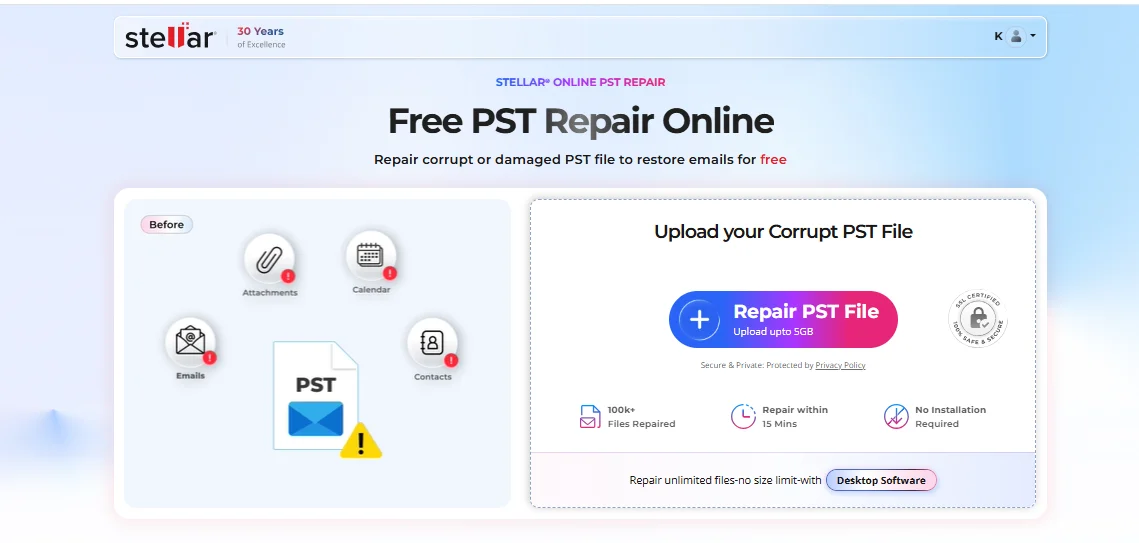
Step 2: Upload the PST File
Select the damaged PST file from your computer and upload it to the service. The free plan accepts file up to 500 MB, while the premium service supports file up to 5 GB.
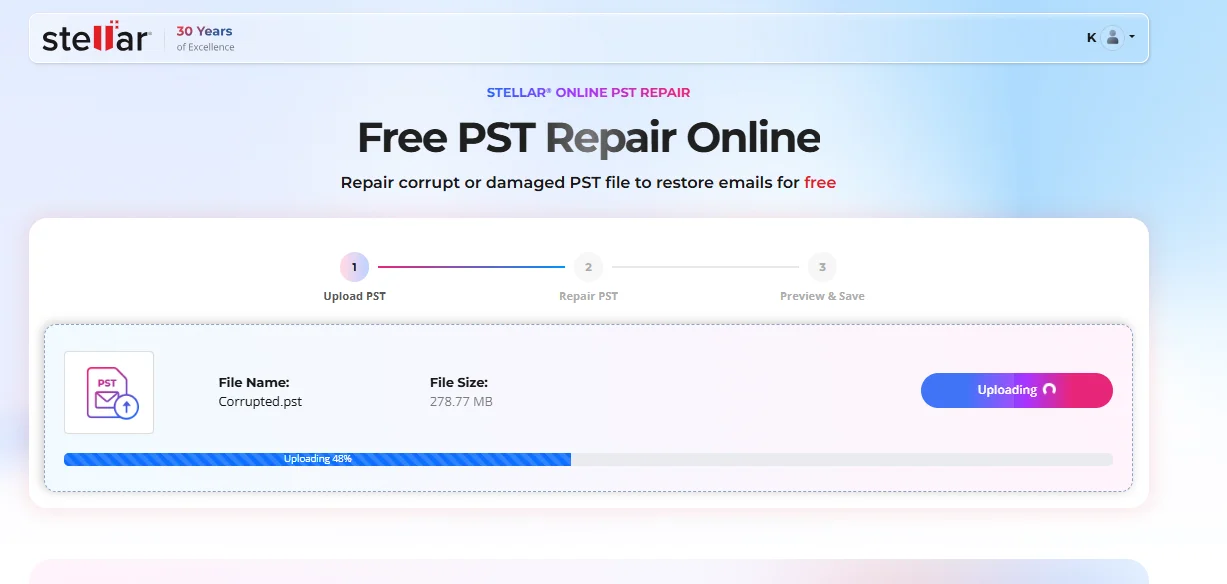
Step 3: Start the Repair
Stellar runs the file through its cloud setup as soon as the PST finishes uploading. According to the service, the repair runs on automation without any human involvement.
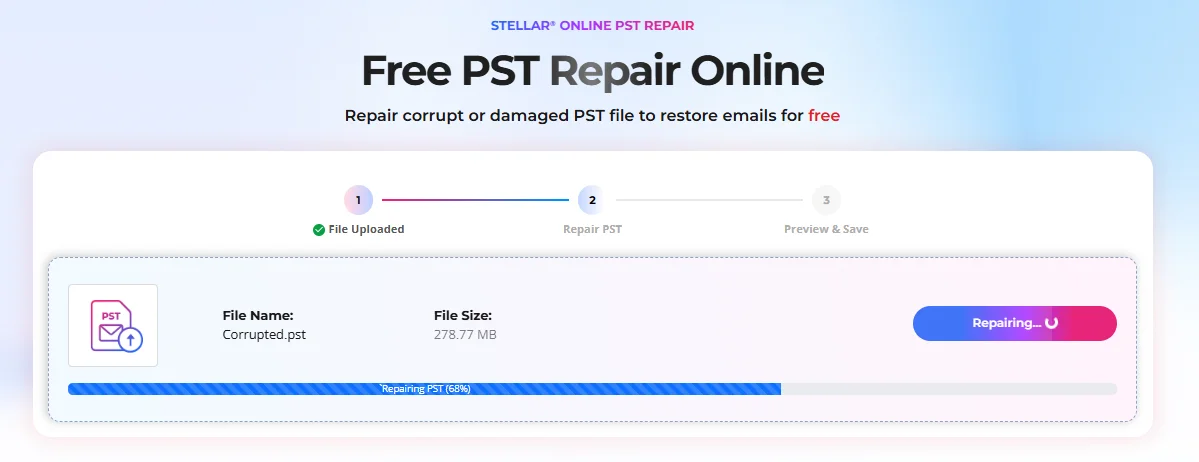
Step 4: Preview the Repaired Mailbox
When the run finishes, you can look over the recovered folder tree and item tallies right in your browser.
That preview comes in handy: it lets you review the recovered data prior to pulling down the fixed PST file.
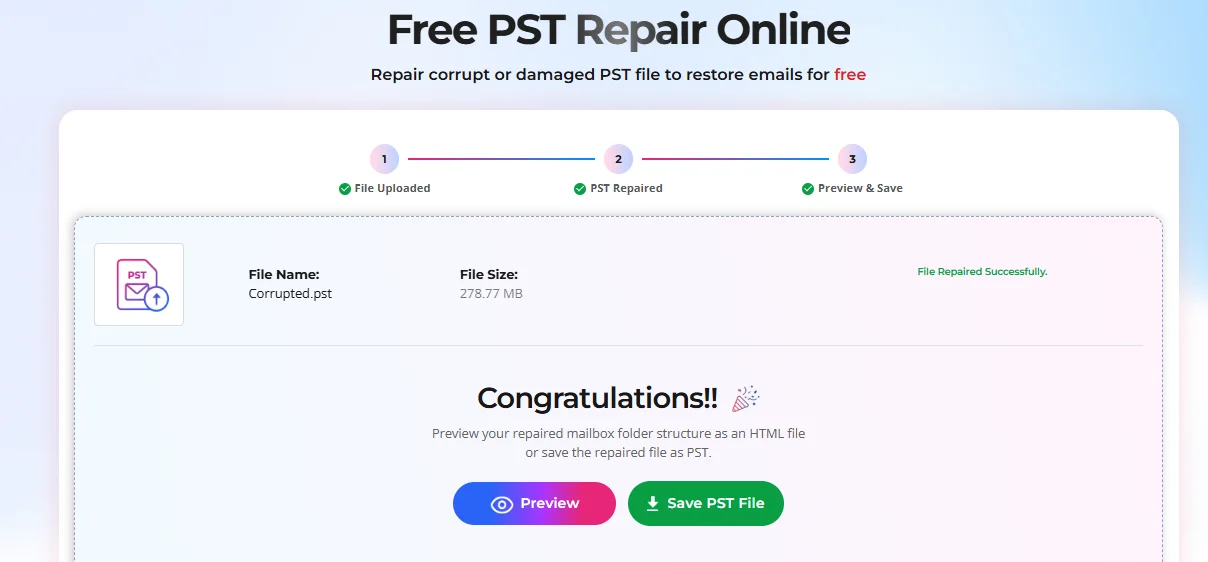
Step 5: Download the Repaired PST
Once you finish checking the recovered contents, you can pull the repaired PST down to your local drive.
According to Stellar, file fixed on the Free tier stay downloadable for 24 hours, while Prefreemium jobs give you 48 hours before the servers wipe them.
Online PST Repair: Practical User Experience
As far as day-to-day use goes, the biggest upside is never having to install local software. The workflow really just comes down to three moves: upload, repair &preview, and download.
Working in a browser is handy if your PST is modest in size and you would rather not install yet another Windows program. Being able to preview helps, too, since you can look through the restored folder layout before committing to a download.
That said, the 5 GB cap on file uploads remains a major constraint. Anyone dealing with massive PST file will have to turn to the Desktop release. On top of that, the web tool handles only a single PST at any one time.
Stellar Repair for Outlook (Desktop based tool)
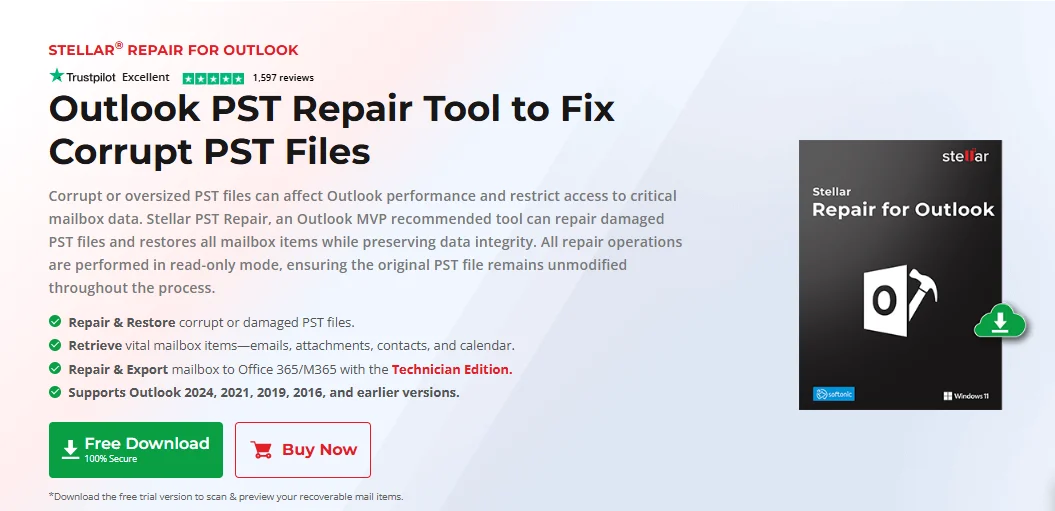
Stellar Repair for Outlook is the desktop alternative for repairing corrupted Outlook PST file. Unlike the browser service, it is installed locally on a Windows computer and performs the repair process on the user’s system.
The current desktop product supports PST file without a stated file-size limit, making it suitable for large PST file that exceed the online service’s 5 GB limit. Stellar specifically states that the software can handle PST file of 50 GB or more.
The current product supports Windows 11, Windows 10, Windows 8.1, and Windows 8 on 64-bit systems. Stellar lists 8 GB of minimum memory and recommends 16 GB, with 250 MB of available disk space for installation file.
Desktop Key Features
Users get multiple options for repairing and exporting data from the desktop tool, such as
● Fixing damaged PST file
● Retrieving email messages alongside their attachments
● Restoring address book contacts as well as calendar items
● Retrieving journal entries, notes, and tasks
● Displaying a preview of salvageable mailbox items
● Handling PST file that are encrypted or locked behind a password
● Compatibility with PST file in both Unicode and ANSI formats
● Preserving the original folder structure of the mailbox
● Exporting restored data into different formats, based on which edition you own
● Sending recovered PST contents straight to Live Exchange or Microsoft 365, where the edition allows it
● Compacting and splitting large PST file in eligible editions
Stellar’s documentation states that the tool treats the original PST as read-only, so it doesn’t write directly to the source file during repair.
How the Desktop Repair Process Works
Step 1: Install and Launch the Software
Get Stellar Repair for Outlook downloaded and set up on a compatible Windows PC. Open the software once setup finishes.
Step 2: Select the Corrupted PST
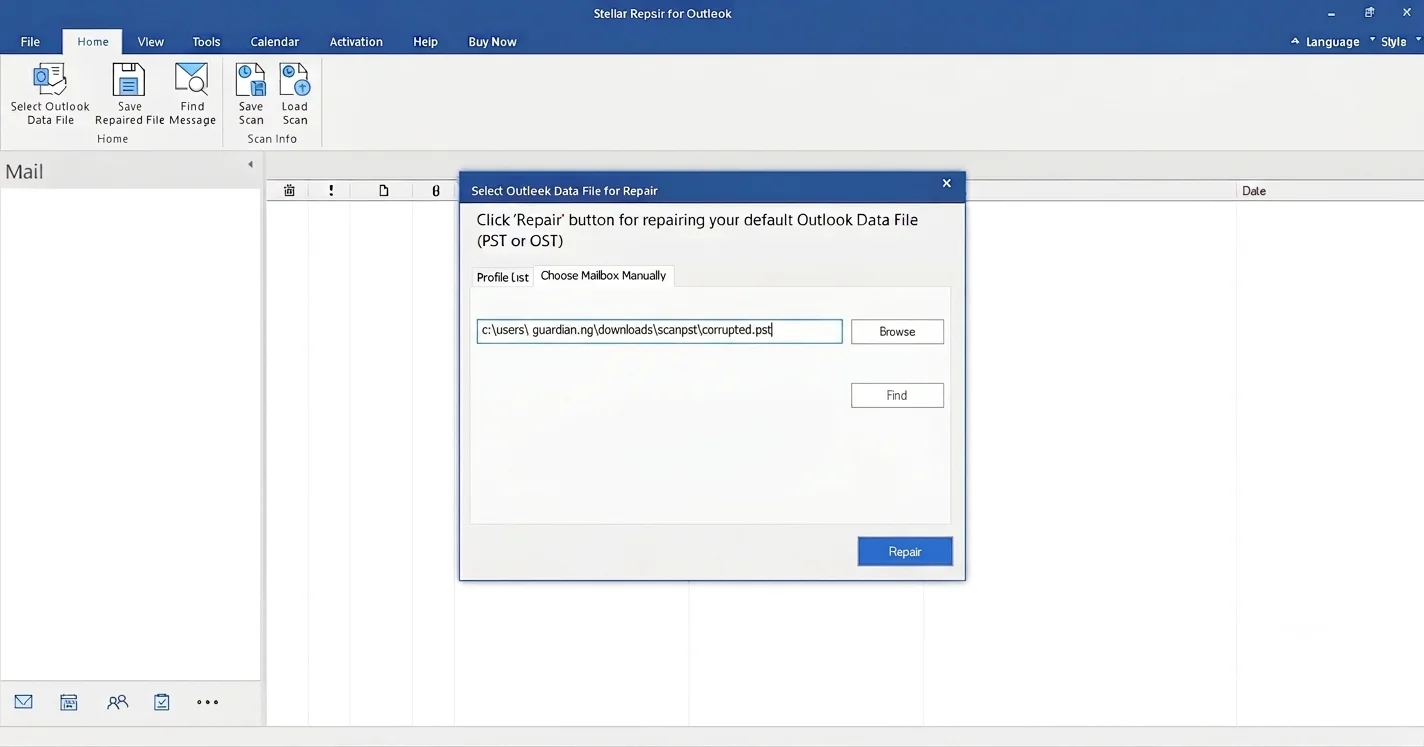
Choose the option to select the Outlook PST file. Users can browse to a known PST location or use the software’s search functionality if the file location is unknown.
Step 3: Scan the PST
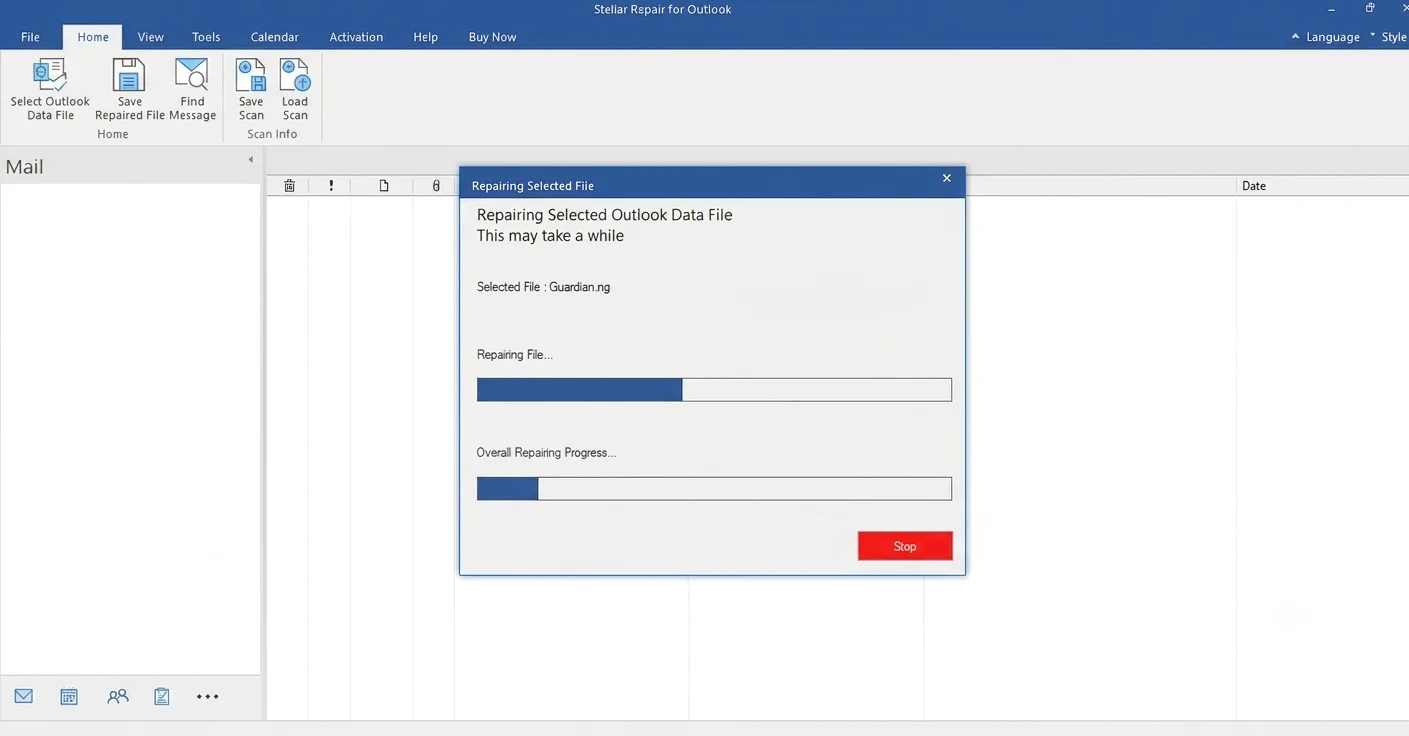
Once the damaged file is selected, kick off the repair process. The software works through the PST to evaluate what mailbox content it can salvage.
Step 4: Preview the Recovered Mailbox
When the scan finishes, the application displays a preview of the recoverable mailbox data. Users can browse folders and inspect individual items before deciding what to save.
The preview can include emails, attachments, contacts, calendars, tasks, notes, journals, and other supported mailbox data.
Step 5: Select the Required Data
Instead of necessarily saving everything, users can review the available folders and select the mailbox information they need.
This can be useful when a large PST contains many folders but only certain messages or mailbox items need to be recovered.
Step 6: Choose an Export or Save Option
The available saving options depend on the edition. Stellar’s current product information lists formats such as PST, EML, MSG, RTF, HTML, and PDF, while higher editions add options such as MBOX and exports to Microsoft 365 or Live Exchange.
Step 7: Save the Repaired Data
Pick your destination folder and save the recovered mailbox file there.
Because the desktop edition runs the whole repair locally rather than in a browser, it makes more sense for anyone handling hefty PST file or needing extra ways to export them.
Desktop Pricing and Editions
Stellar currently lists three main editions for its Desktop Outlook repair product:
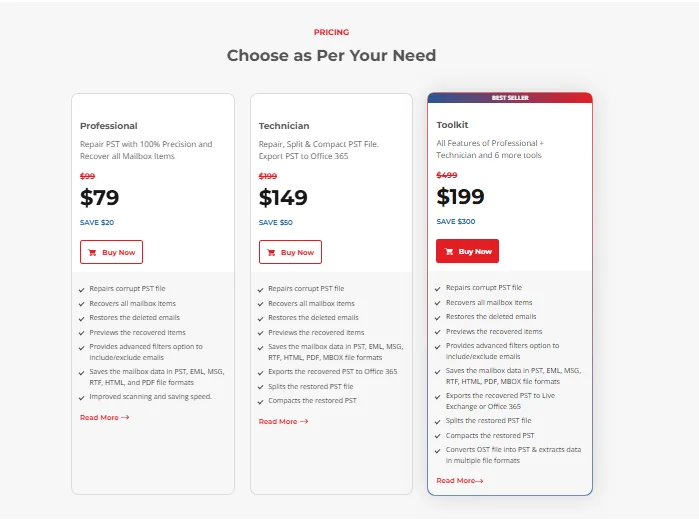
| Edition | Current Listed Price* | Main Features |
| Professional | $79 | PST repair, mailbox recovery, deleted email recovery, multiple save formats |
| Technician | $149 | Professional features plus Office 365/Live Exchange export, PST split, and compact options |
| Toolkit | $199 | Technician features plus additional Outlook utilities |
*Prices can change, so they should be checked again immediately before publication. Stellar’s current pricing page lists these discounted prices at the time of review.
Compatibility and System Requirements
The current desktop version is listed as version 14.0.0.1 and supports 64-bit Windows 11, 10, 8.1, and 8. Stellar lists Intel-compatible x64 processors, at least 8 GB of RAM (16 GB recommended), and 250 MB of disk space for installation file.
For Outlook compatibility, Stellar’s current product information states support for Microsoft Outlook and Office versions, including Microsoft 365, Outlook 2024, 2021, 2019, 2016, 2013, and earlier supported versions.
Stellar Online PST Repair vs. Desktop: Clear Comparison
| Feature | Online PST Repair | Desktop Stellar Repair for Outlook |
| Access | Browser-based | Windows application |
| Installation | Not required | Required |
| Microsoft Outlook | Not required for online repair | Desktop environment required |
| Free repair | One PST up to 500 MB | The free trial allows scanning/preview. |
| Maximum PST size | Up to 5 GB | No stated file-size limit |
| Preview | Yes. | Yes. |
| Repair workflow | Upload → Repair &Preview → Download | Select → Scan → Preview → Export/Save |
| Mailbox items | Emails, attachments, contacts, calendars, tasks, notes, journals and more | Emails, attachments, contacts, calendars, tasks, notes, journals, and more |
| ANSI/Unicode | Supported | Supported |
| Password-protected PST | Supported | Supported |
| Processing location | Online | Local computer |
| Best suited for | Smaller PST file and browser-based recovery | Large PST file and desktop-based recovery |
| Additional export options | Primarily repaired PST download | Multiple formats and advanced export options depending on edition |
Practical Testing and User Experience
A meaningful review of PST repair software should go beyond its feature list. The most useful test is to take a corrupted or test PST file through the complete recovery workflow and record what actually happens.
For the Online version, the testing checklist should include:
- Ease of the initial upload step
- Whether the PST completes its upload without throwing errors
- Total time required to process the data
- Whether the original folder structure shows up intact
- Whether messages and companion mailbox entries show up in preview mode
- How easily the preview lets you spot what was actually salvaged
- Whether you can pull down the fixed PST without issues
- How much time you have before the fixed file is purged
For the desktop version, testing should cover:
Installing the program and running the first-time setup
- PST file selection
- Scan duration
- Preview quality
- Folder hierarchy
- How clearly messages and attached file show up
- Ability to pick out specific individual mailbox items
- Available export formats
Pros and Limitations
Stellar Online PST Repair
Pros
- Browser-based workflow
- You do not need to install any software
- You do not need Microsoft Outlook installed to use the online tool
- Repairs a single PST file of up to 500 MB at no cost
- Paid tier handles PST file as large as 5 GB
- Lets you preview mailbox contents prior to downloading
- Works with password-protected PST file
- Compatible with PST file in both ANSI and Unicode formats
Limitations
- Online file sizes cap out at 5 GB per PST
- The free tier restricts you to a single PST file under 500 MB
- You can only process a single PST at a time
- You only have a set window of time to download your fixed file once processing wraps up
- You have to upload your PST to an external web service
Stellar Repair for Outlook Desktop
Pros
- PST file size is not subject to any stated cap
- Handles oversized PST file without issue
- Local Windows-based processing
- Preview before saving
- Preserves the original folder layout of the mailbox
- Handles various types of mailbox items
- Available export formats vary by tier
- Exporting directly to Microsoft 365 and Live Exchange is reserved for the upper tiers
Limitations
- Must be installed on a compatible Windows PC
- A few of the deeper management and export tools are locked behind the pricier tiers
- Stellar’s current documentation notes that you will need classic Outlook to view the recovered PST once saved
Which Version Should You Use?
The choice largely depends on the size of the PST file and the preferred working environment.
The browser PST Repair option makes more sense for someone who wants a browser-based workflow and whose PST is within the service’s 5 GB limit. The free plan is particularly useful for a single PST of up to 500 MB.
The desktop version is more appropriate when the PST is larger than 5 GB or when the user needs a locally installed recovery tool with additional saving and export options.
Final Verdict
A corrupted PST can make important Outlook information difficult or impossible to access. Stellar addresses this problem with two distinct recovery options rather than a single workflow for every situation.
Stellar Online PST Repair focuses on browser-based convenience. It requires no local installation or Microsoft Outlook for the repair process and supports PST file up to 5 GB. The free plan covers one PST of up to 500 MB, while larger file up to 5 GB require the Premium service. Users can preview the recovered mailbox structure before downloading the repaired file.
Stellar Repair for Outlook Desktop takes a different approach. It runs on Windows, supports large PST file without a stated file-size limit, and provides more saving and export options depending on the edition. It also allows users to preview recoverable mailbox data before saving it.